
What does drive wipe software actually do?
Drive wipe software overwrites every sector of a drive so deleted files cannot be recovered. Formatting only removes the file index, and emptying the recycle bin only marks space as reusable, so the old data stays readable until something overwrites it.
The tools on this list range from free utilities for a single laptop to certified platforms that produce audit-ready proof for businesses. The right pick depends on your drive type, how many drives you must erase, and whether anyone will ask you to prove the data is gone.
Quick comparison
| Tool | Best for | Starting price | Free plan |
|---|---|---|---|
| Blancco Drive Eraser | Certified erasure for businesses | Custom pricing | 14-day free trial |
| KillDisk | Best free drive wiper | from $85/license (Commercial) | Yes (Freeware edition) |
| CCleaner | Quick wipes in a familiar utility | $44.95/year (Pro) | Yes (free version) |
| AOMEI Partition Assistant | Wiping inside a full disk manager | $49.95/year (Professional) | Yes (Standard edition) |
| BleachBit | Best free open-source shredder | Free (open source) | Yes (free, open source) |
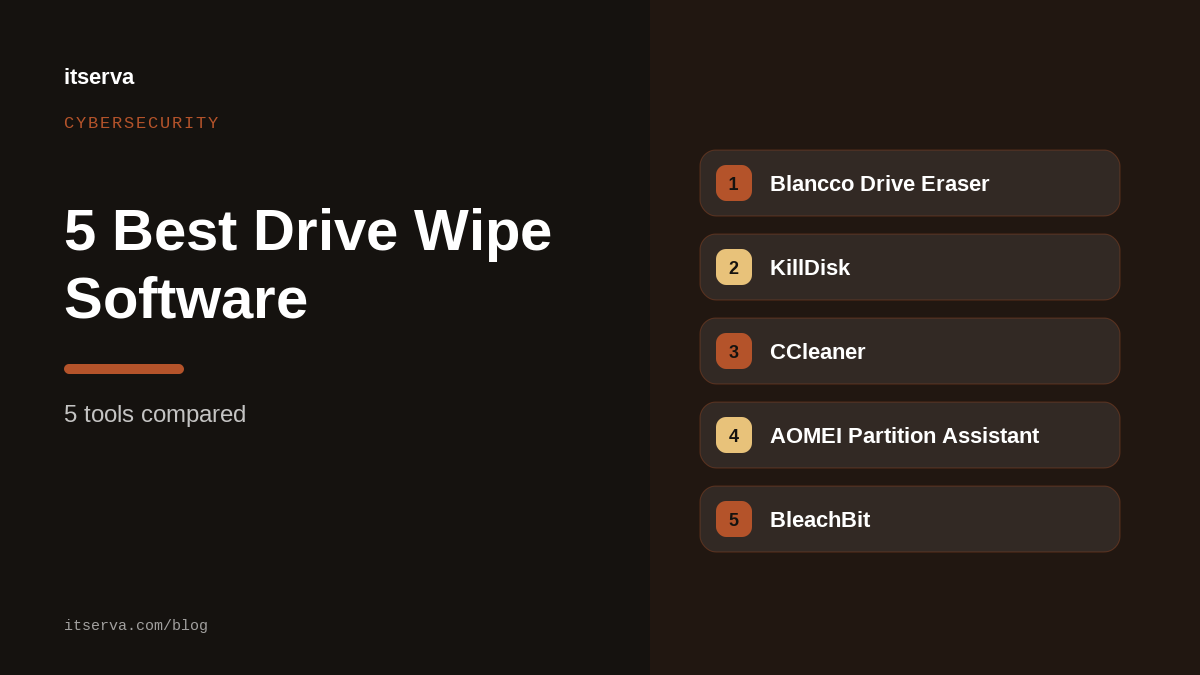
The 5 best drive wipe tools
#1
Blancco Drive Eraser
- Best for
- Certified erasure for businesses
- Starting price
- Custom pricing
- Free plan
- 14-day free trial
Blancco Drive Eraser is the enterprise standard for certified drive wiping. It erases HDDs, SSDs and NVMe drives to 25-plus standards, including NIST 800-88 and IEEE 2883-2022, and every erasure is verified and backed by a digitally signed certificate. The vendor reports more than 500 million certified erasures across 4,000-plus customers.
The trade-off is price and complexity. Pricing is custom and quoted by sales, with plans built around event volumes from 50 events on Starter to 30,000-plus on Enterprise, and a 14-day free trial is the only way to try it first. Blancco Drive Eraser fits IT teams and asset-disposal firms that must prove every wipe to an auditor.
What we like
- Certified erasure to 25-plus standards
- Digitally signed certificate per erasure
- Patented SSD erasure with firmware commands
- Central management and automation for fleets
Watch out for
- Custom pricing quoted by sales
- Built for IT operations, not single home PCs
- 14-day trial only before buying
#2
KillDisk
- Best for
- Best free drive wiper
- Starting price
- from $85/license (Commercial)
- Free plan
- Yes (Freeware edition)
KillDisk is a dedicated disk eraser with a genuinely free edition. The freeware version wipes HDDs, SSDs, NVMe drives and USB sticks, supports 25-plus sanitation standards and low-level secure erase commands for SSDs, and can boot from a USB stick to wipe the drive Windows runs on. Paid commercial licenses start at $85 per license.
The trade-off is the dated interface and the paid-only extras. Erasure certificates, PDF reports and central management sit in the commercial and industrial editions, and the freeware edition erases only 2 drives in parallel. KillDisk fits home users and small IT shops that want a free, bootable wiper for retiring old drives.
What we like
- Freeware edition wipes HDDs, SSDs and NVMe
- Boots from USB to wipe the system drive
- 25-plus sanitation standards
- Paid editions add certificates and reports
Watch out for
- Dated, technical interface
- Certificates need a paid license
- Freeware erases only 2 drives at once
#3
CCleaner
- Best for
- Quick wipes in a familiar utility
- Starting price
- $44.95/year (Pro)
- Free plan
- Yes (free version)
CCleaner is a PC cleaner with a capable drive wiper built in. The free version includes the Drive Wiper, which overwrites a whole drive or just its free space with 1 to 35 passes, so deleted files cannot be recovered while current files stay untouched. Pro costs $44.95 a year and adds automatic cleaning, driver updates and priority support.
The trade-off is that wiping is a side feature, not the product. There is no bootable media for wiping the drive Windows runs on and no erasure certificate for compliance, and the paid plans cover cleaning tools you may not need. CCleaner fits anyone who already has it installed and wants a quick wipe before selling a PC.
What we like
- Drive Wiper included in the free version
- Up to 35 overwrite passes
- Wipes free space without touching files
- Familiar interface millions already know
Watch out for
- No bootable media for the system drive
- No erasure certificates
- Wiping is a side feature of a cleaner
#4
AOMEI Partition Assistant
- Best for
- Wiping inside a full disk manager
- Starting price
- $49.95/year (Professional)
- Free plan
- Yes (Standard edition)
AOMEI Partition Assistant is a full disk manager that wipes drives as one job among many. The free Standard edition partitions, clones, migrates and wipes drives, including SSD secure erase through guided wizards, while Professional adds the full toolkit for $49.95 a year or $69.95 for a lifetime license covering 2 PCs.
The trade-off is breadth over focus. The free edition is for personal use only, businesses need a paid license, and a single-purpose wiper is simpler if you only need to erase one drive once. AOMEI Partition Assistant fits people who manage disks regularly and want wiping inside a broader toolkit.
What we like
- Free Standard edition for personal use
- Wiping plus partitioning, cloning and migration
- Guided wizards for SSD secure erase
- 90-day money-back guarantee
Watch out for
- Free edition is personal use only
- Businesses need a paid license
- Overkill for a one-time wipe
#5
BleachBit
- Best for
- Best free open-source shredder
- Starting price
- Free (open source)
- Free plan
- Yes (free, open source)
BleachBit is a free, open-source system cleaner with secure deletion built in. It shreds files, wipes free space and clears browser and application traces on Windows, Linux and macOS, with no account, no subscription and no paid tier. Power users can automate cleanup with its command-line interface and custom CleanerML rules.
The trade-off is that wiping is secondary to cleaning. BleachBit will not boot-wipe a system drive or produce a compliance certificate, so end-of-life drives still need a dedicated eraser. BleachBit fits Linux users and privacy-minded people who want free daily hygiene plus secure deletion.
What we like
- Free and open source under GPLv3
- Runs on Windows, Linux and macOS
- Shreds files and wipes free space
- Command-line automation and custom rules
Watch out for
- No bootable system-drive wipe
- No compliance certificates
- Cleaner first, dedicated wiping second
How we chose
We compared drive wipe software that securely overwrites or erases drives, from free utilities to certified enterprise platforms. We weighted erasure method and SSD support first, then whether a free edition covers personal use, then total cost for a single user. We also checked whether each tool verifies the wipe and whether it can erase the drive the operating system runs on. Prices come from vendor pricing pages checked in November 2026. No vendor paid for placement, and we did not run hands-on tests; we compare published information.
Why SSDs need a different kind of wipe
Overwriting works well on spinning hard drives, but SSDs hide data in over-provisioned space that overwriting cannot reach. A tool that only writes zeros across the visible capacity can leave recoverable data on an SSD, which is why firmware-level secure erase or cryptographic erase commands matter more than the number of passes.
Check that your chosen tool names your drive type before you buy or download. If it lists SSD secure erase or firmware commands, it can handle modern drives; if it only offers multi-pass overwriting, keep it for old HDDs and USB sticks.
How to choose
Start with the drive you need to erase. A single laptop for resale needs a free tool with free-space wiping or a bootable USB, while a business retiring dozens of PCs needs certificates, verification and central reporting.
Next, match the tool to the drive type. SSDs need firmware-level secure erase, so confirm that feature explicitly; HDDs are fine with standard overwriting, and one verified pass is enough for personal use.
Finally, check what proof you need. Keep the erasure report if you are disposing of work hardware or customer data, and test the tool on a spare drive first so you know the wipe completes before you trust it with the real one.