
Why use third-party backup instead of Windows' own tools?
Windows can save files and settings, but it does not make a full bootable image of the drive that you can restore to a new disk after a failure. Third-party tools fill that gap with disk imaging, cloning and bare-metal restore.
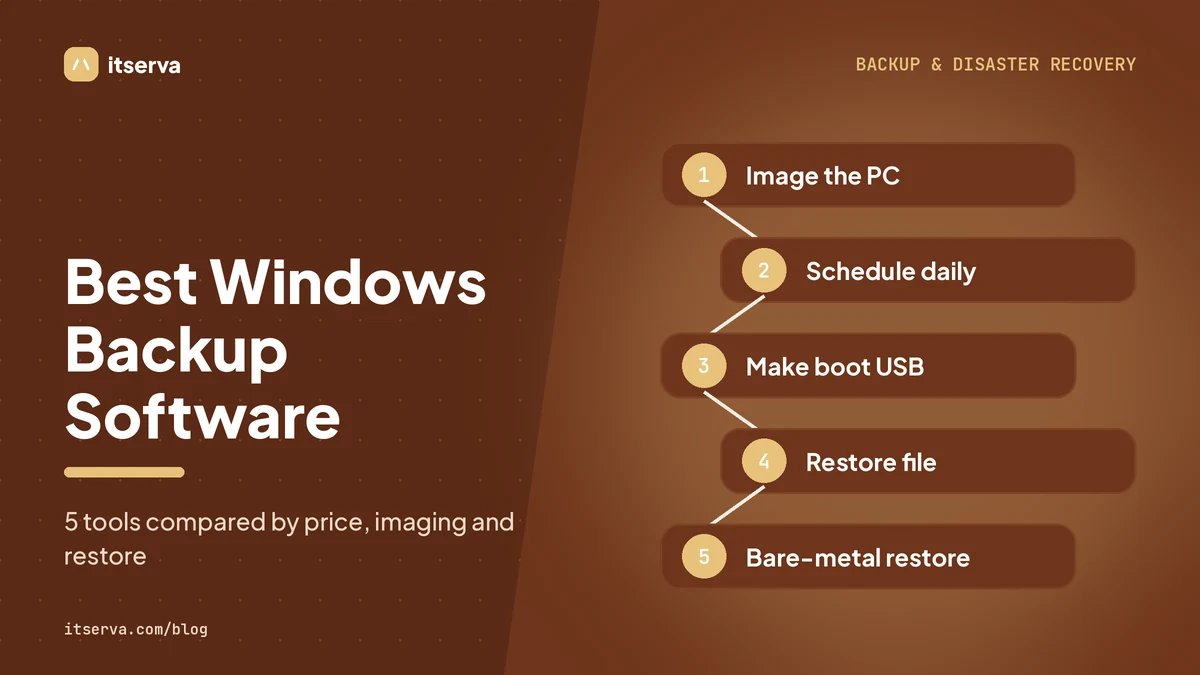
For most people the key features are a scheduled full-system image, a bootable USB rescue drive and the option to restore a single file without rolling back the whole PC.
Quick comparison
| Tool | Best for | Starting price | Free plan |
|---|---|---|---|
| Acronis True Image | Best Windows backup overall | $44.99/year first year (Essentials, 1 PC) | No (feature trials only) |
| Macrium Reflect | Fast disk imaging | Paid licence (3-year term option) | No |
| AOMEI Backupper | Best free Windows backup | From $39.95 per PC (Professional) | Yes (Standard) |
| EaseUS Todo Backup | Free backup with cloning upgrade | Home edition (promo $79.95 shown) | Yes (Free edition) |
| Veeam Agent for Microsoft Windows | Free image backup for business PCs | Free | Yes |
The 5 best rated Windows backup tools
#1
Acronis True Image
- Best for
- Best Windows backup overall
- Starting price
- $44.99/year first year (Essentials, 1 PC)
- Free plan
- No (feature trials only)
Acronis True Image is a consumer and small-office backup suite. Essentials costs $44.99 for the first year with backup, disk cloning and universal restore, Advanced at $51.09 adds malware protection, cloud and Microsoft 365 backup with 50 GB to 500 GB of storage, and Premium adds up to 10 TB.
The trade-off is that the first-year prices are discounts, and renewals follow the higher list prices. Acronis True Image fits Windows users who want imaging, cloud backup and anti-malware in one subscription.
What we like
- Imaging and cloning on every plan
- Cloud backup on Advanced
- Covers 1, 3 or 5 computers
- Universal restore to new hardware
Watch out for
- Subscription only
- Renewal at list price
#2
Macrium Reflect
- Best for
- Fast disk imaging
- Starting price
- Paid licence (3-year term option)
- Free plan
- No
Macrium Reflect X is a disk-imaging tool known for speed and reliable restores. Macrium says backups run up to twice as fast as earlier versions, Rapid Delta Restore recovers images in minutes, interrupted backups resume, and Image Guardian protects backup files from ransomware and deletion.
The trade-off is that the home product page shows no price, only a 3-year term option with 10% savings, and there is no cloud storage included. Macrium Reflect fits technical users who want fast local images to an external or network drive.
What we like
- Fast imaging and delta restore
- Resumable backups
- Ransomware guard for backup files
Watch out for
- No price shown on the product page
- No built-in cloud storage
#3
AOMEI Backupper
- Best for
- Best free Windows backup
- Starting price
- From $39.95 per PC (Professional)
- Free plan
- Yes (Standard)
AOMEI Backupper covers system, file, disk and partition backup with schedules and automatic cleanup of old backups. Standard is free, Professional costs from $39.95 per PC for personal use, Workstation from $49.95 for business PCs, and Server from $149 per server.
The trade-off is that features such as dissimilar hardware restore and PXE boot sit in paid editions. AOMEI Backupper fits home users who want a capable free tool and small firms that want cheap per-PC licences.
What we like
- Free Standard edition
- Low per-PC prices
- Technician licence for unlimited PCs
- Bare-metal and selective restore
Watch out for
- Business use needs Workstation or higher
- Some restore options are paid only
#4
EaseUS Todo Backup
- Best for
- Free backup with cloning upgrade
- Starting price
- Home edition (promo $79.95 shown)
- Free plan
- Yes (Free edition)
EaseUS Todo Backup comes in Free, Home, Enterprise and Technician editions. The Free edition backs up and restores systems, files, disks and partitions, while Home adds built-in system cloning and automatic backup methods, and Enterprise covers Windows Server, SQL and Exchange.
The trade-off is pricing clarity: the page shows a $79.95 promotional price without saying which edition or term it covers. EaseUS Todo Backup fits users who want a familiar free tool with an easy upgrade path.
What we like
- Free edition for basic backups
- System cloning on Home
- Business editions for servers
- Trials on paid editions
Watch out for
- Prices shown as promotions
- Edition differences need checking
#5
Veeam Agent for Microsoft Windows
- Best for
- Free image backup for business PCs
- Starting price
- Free
- Free plan
- Yes
Veeam Agent for Microsoft Windows FREE makes image-based, volume, file and folder backups of Windows desktops, laptops and cloud VMs. It creates bootable recovery media on USB or ISO and supports bare-metal restore, file-level restore and direct restore to Azure or AWS.
The trade-off is that backup targets are local or NAS, with no consumer cloud storage, and central management needs Veeam Backup & Replication. Veeam Agent fits IT-minded users and small offices that already use Veeam or want a free, enterprise-grade agent.
What we like
- Completely free
- Bare-metal restore
- Restore straight to Azure or AWS
- Same engine as Veeam B&R
Watch out for
- No included cloud storage
- Central control needs another Veeam product
How we chose
We compared Windows backup tools that create full disk images as well as file backups. We weighted imaging and restore features first, then free editions, then published prices. Details come from vendor product and pricing pages checked in November 2026. We did not include star ratings because we only list figures we checked on a page. No vendor paid for placement, and we did not run hands-on tests; we compare published information.
Image backup vs file backup on Windows
An image backup copies the entire drive, including Windows, apps and settings, so you can restore a dead PC to a new disk in one go. A file backup copies only documents and folders, which is quicker but means reinstalling Windows after a crash.
The safest setup uses both: a weekly image to an external drive and daily file backups, ideally with one copy stored offsite or in the cloud.
How to choose
Start with how you want to recover. If you need a whole PC back after a drive failure, pick a tool with imaging and a bootable rescue USB, which every tool here offers.
Next, decide on cloud storage. Acronis True Image Advanced includes it, while Macrium, AOMEI, EaseUS and Veeam Agent save to local or network drives. Businesses with servers should also see our server backup software guide.
Finally, test the rescue media right away. Boot the PC from the USB stick and browse a backup, so you know it works before you need it.